Every office ends up with the same quiet mess: half the team keeps work passwords in the browser, the other half in a dedicated vault, and nobody agrees on which is safer. The honest answer is that both can be safe, for different reasons and against different threats.
A browser vault is a password manager in slippers. It stores, syncs and fills credentials with almost no setup. A dedicated password manager does the same job but adds the controls a team needs when people share logins, leave the company, or get phished on a Tuesday afternoon. Which one you standardise on depends less on cryptographic trivia and more on how your team actually works.
Where the passwords actually live
Browser vaults
Chrome, Edge, Firefox and Safari all offer to save passwords, and it's easy to accept. The vault is tied to a browser profile and usually to a personal account — a Google, Microsoft, Apple or Firefox account. Encryption at rest leans heavily on the operating system login. Chrome on Windows historically tied protection to the Windows account, and newer builds use app-bound encryption; Safari hands storage to iCloud Keychain; Firefox lets you set a primary password, but many people never do.
The practical consequence: on a machine where the OS login is weak, shared, or already compromised, the browser vault is only as strong as that login.
Dedicated password managers
A password manager keeps one encrypted vault. The data is encrypted on your device before it syncs, and the key is derived from a master password using a deliberately slow function. The vendor stores ciphertext it cannot read. Most managers also lock on idle, require a master password or biometric to open, and support a hardware security key as a second factor.
The question isn't which tool is unbreakable. It's which one fails in a way you can see and fix.
Security features, side by side
- Master secret: a browser vault may be protected only by your device login. A password manager requires a separate master password, often with biometrics or a hardware key on top.
- Sharing: browsers now allow some credential sharing, but it's built around individuals. Managers offer shared folders with roles — view-only, edit, admin — plus links that expire.
- Admin control: browsers give a company no console. Managers provide provisioning, offboarding, directory sync, and audit logs of who opened which item.
- Phishing resistance: both are decent, because both match the saved credential to the exact domain and won't autofill on a lookalike. Neither saves you if you paste a one-time code into a fake login page.
- Breach alerts: managers check saved items against known breach corpora and flag reused passwords. Browsers warn about compromised credentials too, usually with less detail.
- Recovery: browser recovery runs through your personal account, so that account becomes a single point of failure. Managers offer recovery codes, emergency access, and admin-initiated resets.
Where browser vaults get awkward at work
The friction shows up in ordinary moments. Someone signs into the company's social media tool using their personal Chrome profile on a work laptop. The credential lives there, synced to their phone, invisible to everyone else. They resign eight months later and the marketing lead spends an afternoon hunting for a login nobody recorded.
Sharing is the other sore spot. A colleague pastes a shared vendor password into chat; it gets saved to a personal vault; the password never rotates. When the vendor asks who has access, nobody can answer. There's no audit trail for the finance portal, no way to enforce two-factor authentication company-wide, and no clean way to revoke access on someone's last day. Browser vendors are closing some of these gaps, but roles, expiry and reporting are still thin.
What password managers do better for teams
This is where the extra cost earns its keep. Admins can force a policy: minimum vault strength, mandatory second factor, autofill limits on untrusted devices. Departing employees are disabled in one action, and anything they could see is revoked at the same time.
Shared collections mean the social media password isn't a secret one person hoards — it sits in a folder the whole team can use, with the ability to rotate it in a minute. Many managers also store API keys, secure notes and Wi-Fi credentials, and log access so you can answer "who opened this?" without guesswork. Autofill through the browser extension is just as fast as the built-in vault, which matters more than any feature list. People abandon tools that slow them down.
Breach risk: the scenarios that matter
Take a stolen, unlocked laptop. With a browser vault, an attacker who gets past the OS login may be able to read saved credentials, particularly if the profile syncs and the browser account is already accessible. With a password manager set to lock on idle, they hit a wall unless they also have your master password and second factor.
Now imagine the vendor itself is breached. Both categories of tool are targeted, but a well-designed manager exposes ciphertext, which is far less useful than plaintext. The uncomfortable truth is that neither option stops malware that harvests credentials directly from a running browser, and neither fixes the teammate who reuses the same password on six sites. That habit is the actual emergency.
If you operate under a compliance regime — client data, health records, financial systems — check with whoever owns compliance before you standardise, and get their requirements in writing.
How to choose and roll it out
- Inventory first. List where work credentials currently live: browser profiles, spreadsheets, sticky notes, a shared drive. Most teams underestimate this.
- Put company and shared accounts in a manager. That's where admin control, sharing and offboarding actually matter.
- Leave browser autofill for low-risk personal logins if you can't ban it outright, and require a primary password or OS-level encryption with it.
- Lock down the recovery paths. Turn on two-factor authentication for both the manager and any browser account linked to work data. Test recovery codes before you need them.
- Kill password-by-chat. Replace it with share links that expire, and rotate anything that was ever sent in plain text.
- Practise offboarding once. Disable a test account, confirm access disappears, then write down the steps.
The short version: browser vaults are fine for convenience and personal logins, but they were never built to be managed by an IT team. For shared work credentials, a dedicated manager gives you the visibility, revocation and recovery that turn a last-minute password hunt into a two-minute task.
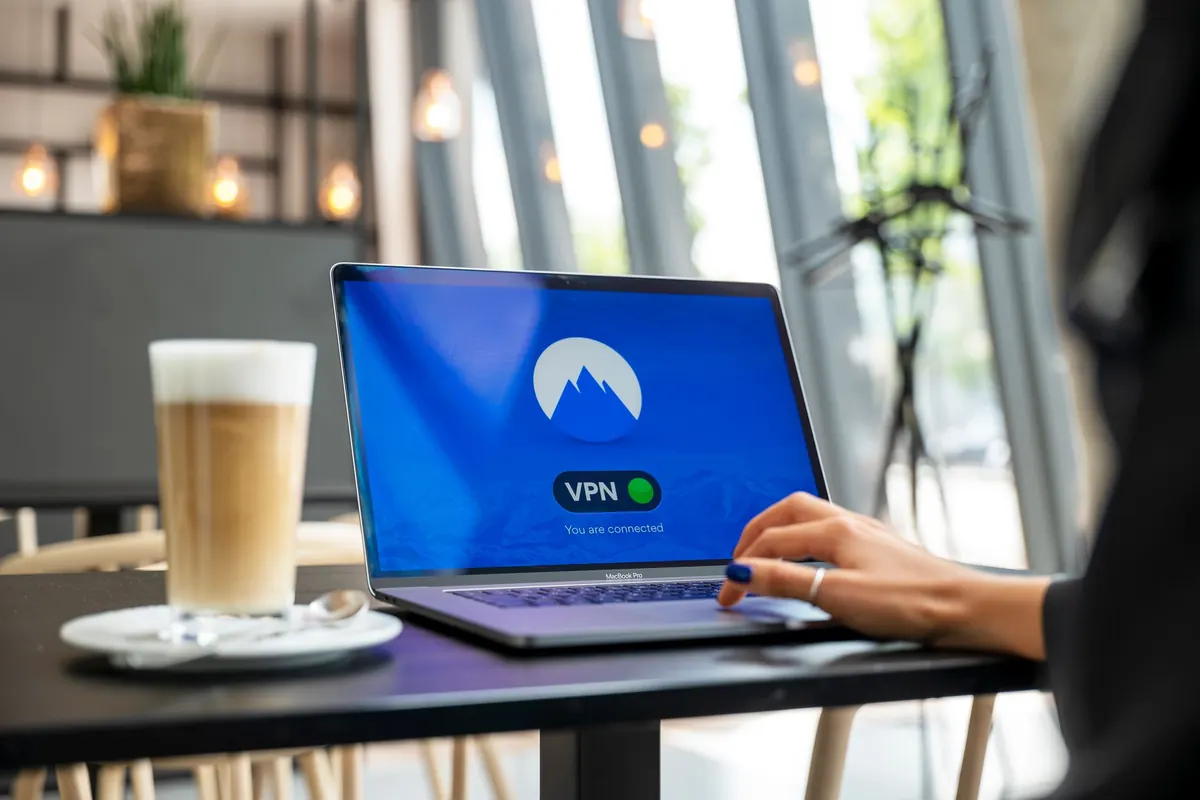
Photo: tookapic / Pixabay