The lounge Wi-Fi at gate B12 has a way of looking trustworthy. The name matches the terminal, the signal is strong, and you have forty minutes and a laptop full of unfinished work. That is exactly when a careless click costs the most. Public networks in cafes, airports and hotels are not automatically dangerous, but they are shared, often unencrypted, and sometimes impersonated by someone sitting twenty feet away. A short checklist, run every time, removes most of the risk.
Prep Work: Do This Before You Leave Home
Most public Wi-Fi safety happens before you connect to anything. Twenty minutes of setup at home means you are not making security decisions in a boarding queue with a coffee in one hand.
- Install and test a reputable VPN on every device you travel with. Do it at home, not while standing in a hotel lobby guessing which download is genuine.
- Turn on full-disk encryption and a strong device passcode — FileVault, BitLocker, or the built-in encryption on your phone. If a laptop is lost or stolen, this is what keeps the files unreadable.
- Switch off auto-join for open networks, and set file sharing and AirDrop to Contacts Only.
- Move important logins into a password manager with unique passwords, and turn on multi-factor authentication. One leaked credential should never open five other accounts.
- Update your operating system and browser before you go. Patches you skip at home tend to get installed later, on a network you do not trust.
Pick the Network on Purpose
Choosing a hotspot is the easy part. Knowing which one is real takes ten extra seconds. Network names get copied, and the fake one often has the stronger signal because it is sitting on the next table.
- Confirm the exact network name with staff or with the sign in the terminal. Do not trust the list on your screen.
- If two names look almost identical — "Cafe_Free_WiFi" and "Cafe Free WiFi" — ask before connecting.
- Read the captive portal before typing anything. A page demanding your email password, corporate login, or card details for "verification" is a red flag.
- Never click past a certificate warning. If the browser says the connection is not private, close the tab.
The First Five Minutes on an Unknown Network
Assume the network is hostile until you have done a few small things. None of them are technical, and all of them are quick.
- Set the connection to "Public" so your machine stops advertising shared folders and printers. On macOS, check that File Sharing and Screen Sharing are off.
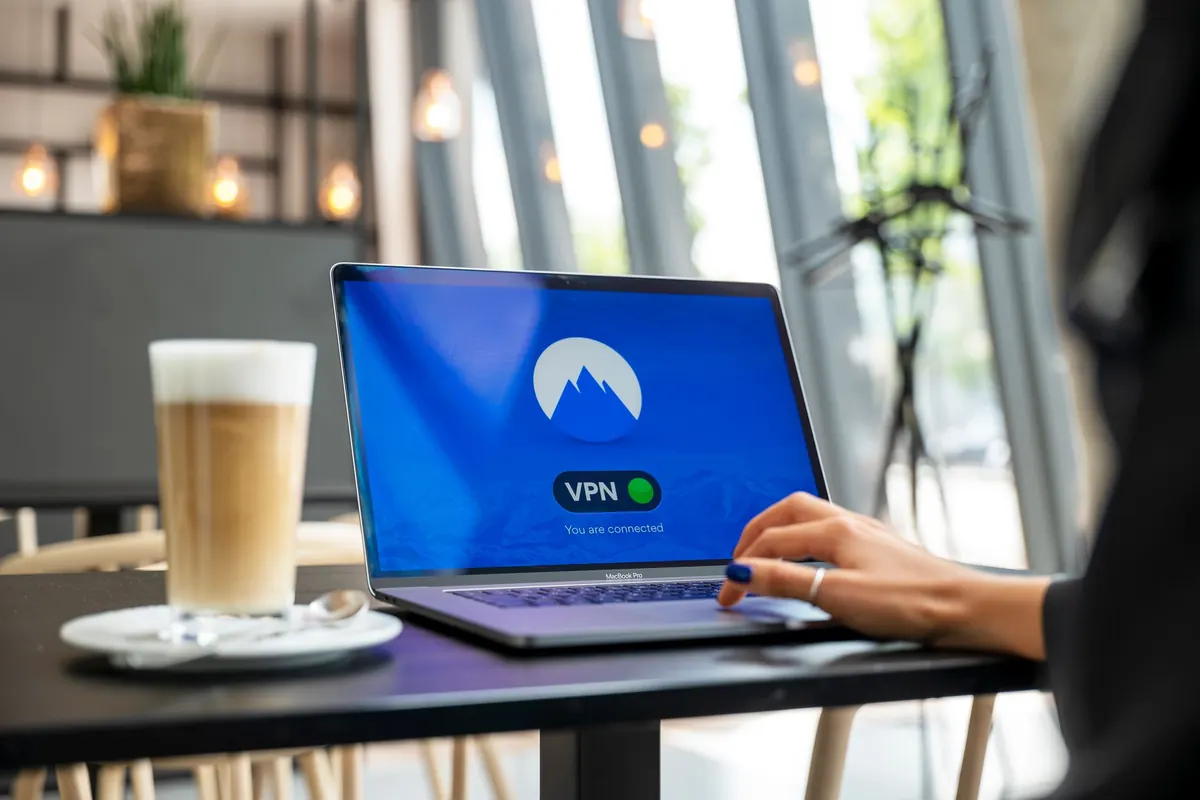
- Start the VPN before opening email, chat, or cloud drives — not after.
- Check for HTTPS. Look for the padlock in the address bar, and treat a site without one as read-only. Even with HTTPS, someone nearby can often see which sites you visit, just not what you type into them.
- Sign out of anything you do not need, and skip "remember me" on shared or borrowed devices.
- Mind the screen. Shoulder surfing needs no technical skill and no equipment.
What to Do Somewhere Else
Some tasks are simply worth postponing until you are on a trusted connection or your own mobile data:
- Banking, tax portals, payroll systems and HR platforms.
- Anything that involves typing a card number.
- Password resets and account recovery flows, which are the easiest thing to hijack.
- Large transfers of client files or anything covered by a confidentiality agreement.
A password-protected cafe network is better than an open one, but that password is taped to the counter. Assume anyone could be on it.
Cafes, Airports and Hotels: Different Room, Different Risks
Cafes
Open, unencrypted, and busy. Keep your back to a wall if you can, keep your bag closed, and do not leave a laptop while you queue for a refill.
Airports
Long sessions and free charging points. Public USB ports carry data as well as power, so use your own charger in a wall outlet, or a charge-only cable or adapter. Never leave a device unattended at a gate, even for a moment.
Hotels
Guest networks often log in with a room number and surname — credentials half the building knows. Hotel business centres and shared computers are worse. And think twice before signing your streaming accounts into the room's smart TV: you may not be able to sign out cleanly when you check out.
When You Really Do Need to Do Sensitive Work
Your phone's hotspot is almost always the safer option, because it uses cellular data rather than a shared local network. If your employer issues a managed laptop with an approved VPN, that is the intended tool; pair it with a hardware security key for logins where you can. If you are unsure what is allowed, ask your IT or security team before you travel. Their rules come first, and this guidance is general rather than a substitute for your organisation's policy.
The Checklist You Can Remember Without Notes
- VPN on, updates done, auto-join off.
- Verify the network name with a human or a sign.
- Set the network to Public, keep sharing off.
- No banking, no card numbers, no password resets.
- Sign out, then forget the network when you leave.
- If anything felt wrong, change that password and check recent activity on the account.
That is the whole routine, and it takes about two minutes. The point is not paranoia; it is keeping the dull parts of your digital life dull — especially when you are tired, far from home, and the Wi-Fi is free.
Photo: Stefan Coders / Pexels